Google SAML SSO Configuration Guide
Step 1: Navigate to Google Admin Console
Open your web browser and go to Google Admin Console (admin.google.com)
Log in with your administrator credentials
From the main dashboard, locate and click on the "Apps" section in the left sidebar
Select "Web and mobile apps" from the Apps menu
You will see a list of all currently configured applications
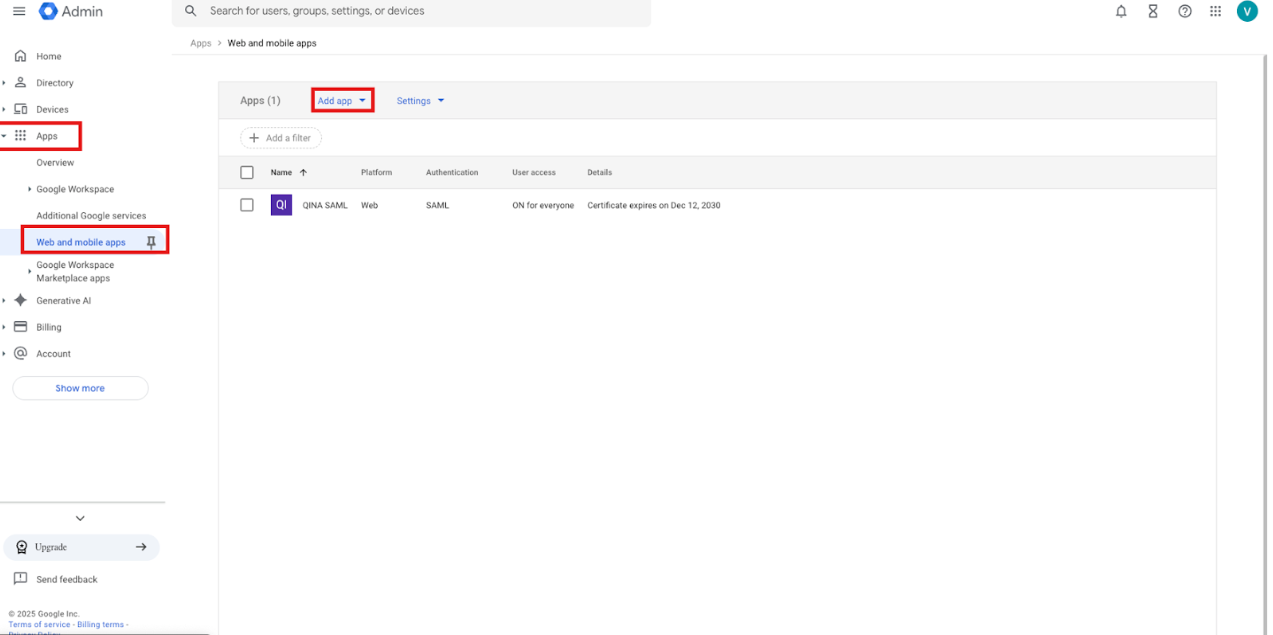
Step 2: Add a New SAML Application
On the Web and mobile apps page, click the "Add App" button located at the top
From the dropdown menu, select "Add custom SAML app"
This will open the SAML app configuration wizard
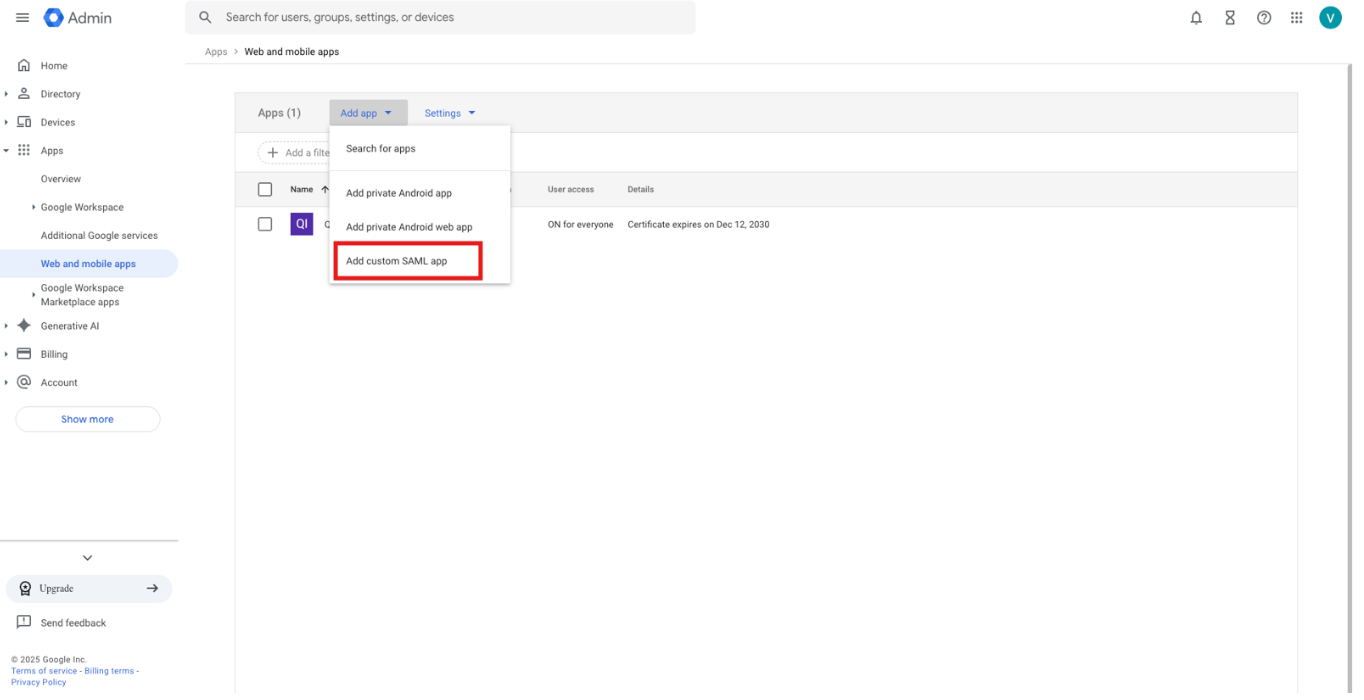
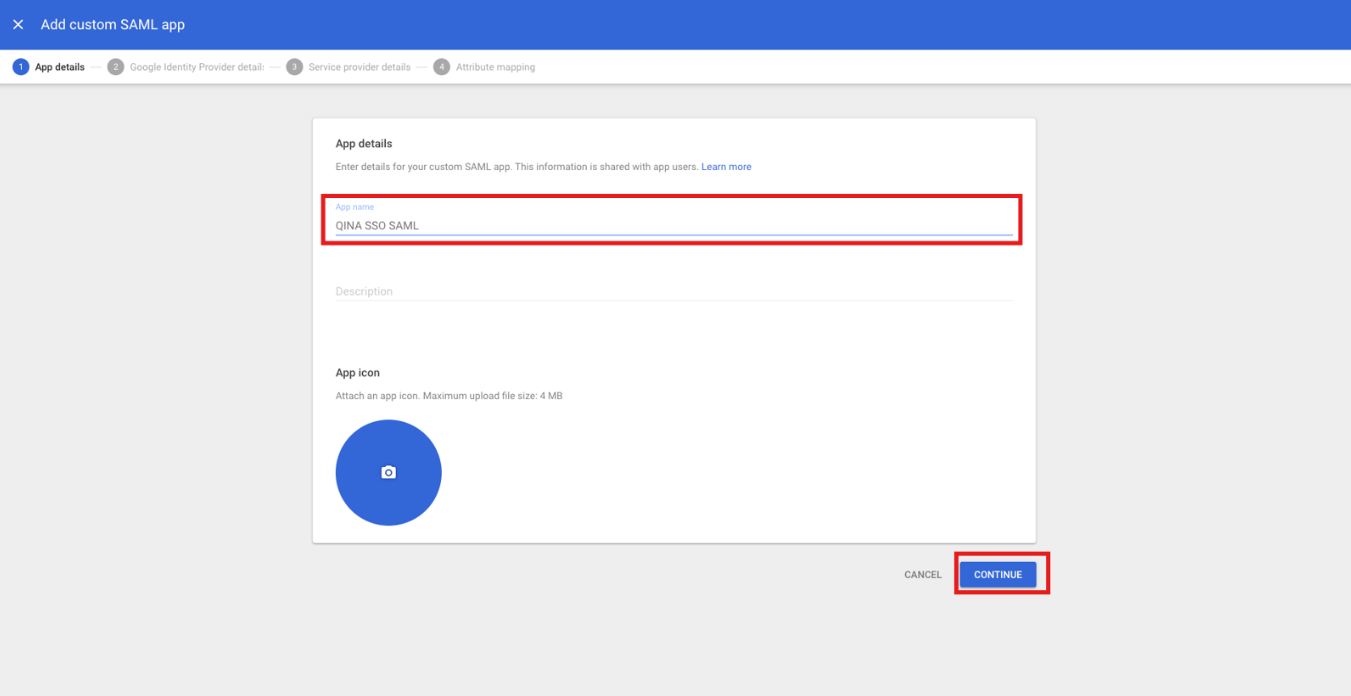
Step 3: Configure App Name and Details
In the "App name" field, enter the name for your application (example shown: "test")
Optionally, you can add a description and upload an app icon/logo
Review the app details
Click the "Continue" button to proceed to the next step
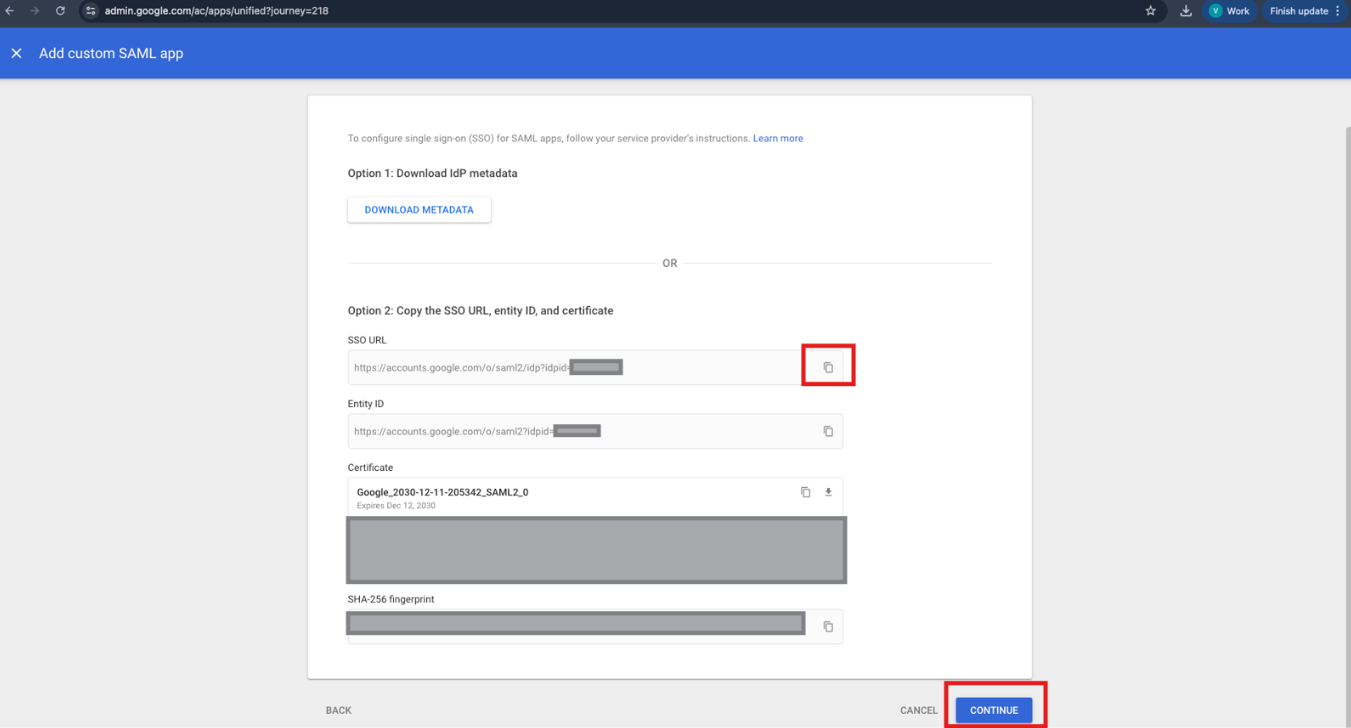
Step 4: Google Identity Provider Details
On this screen, Google provides the Identity Provider (IdP) information
You have multiple options to download/copy this information:
Copy the "SSO URL" (Single Sign-On URL) - this is the endpoint where authentication requests are sent
Copy the "Entity ID" - this is the unique identifier for Google as the identity provider
Save all this information as you will need it to configure your service provider
Click "Continue" to move to the next step
Step 5: Service Provider Details Configuration
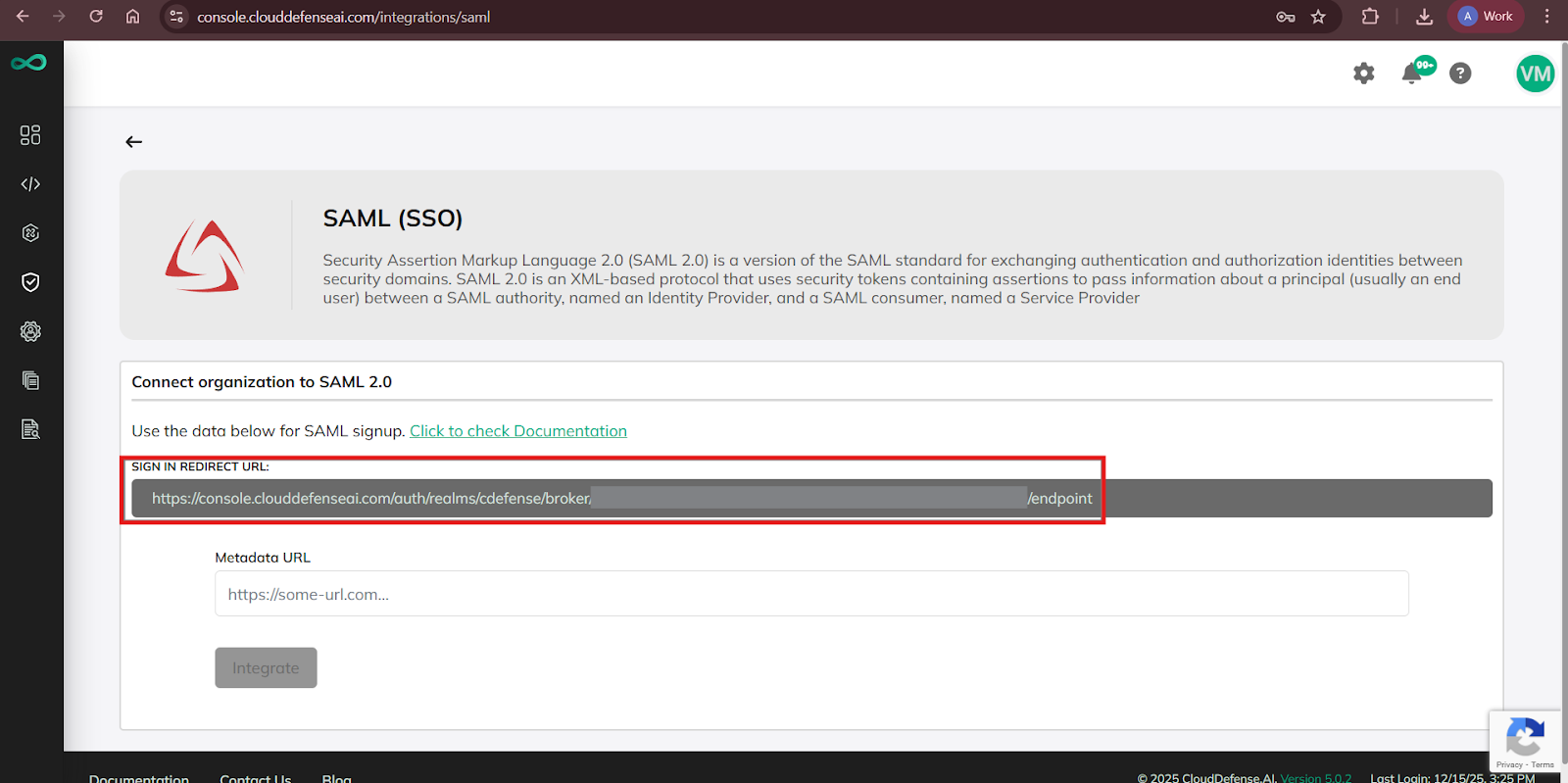
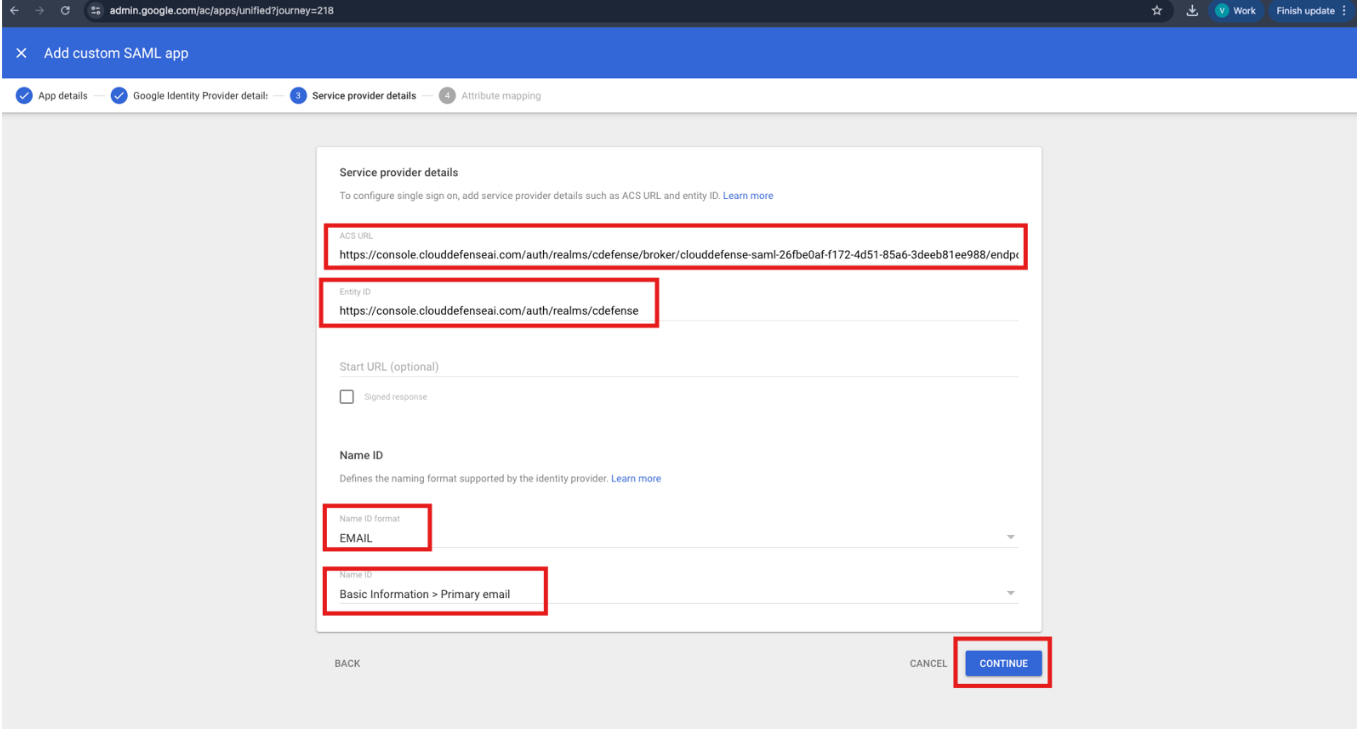
Enter the "ACS URL" (Assertion Consumer Service URL) - this is the URL on your application where Google will send the SAML response ( On console go to Integrations->SAML->Sign In Redirect URL )
Enter the "Entity ID" for your service provider - this is the unique identifier for your application (“https://console.clouddefenseai.com/auth/realms/cdefense”)
Set the "Name ID format" from the dropdown menu
Select "EMAIL" as the Name ID format (this tells Google to send the user's email as the identifier)
Set "Name ID" to "Basic Information > Primary email"
Review all the entered information carefully
Click "Continue" to proceed
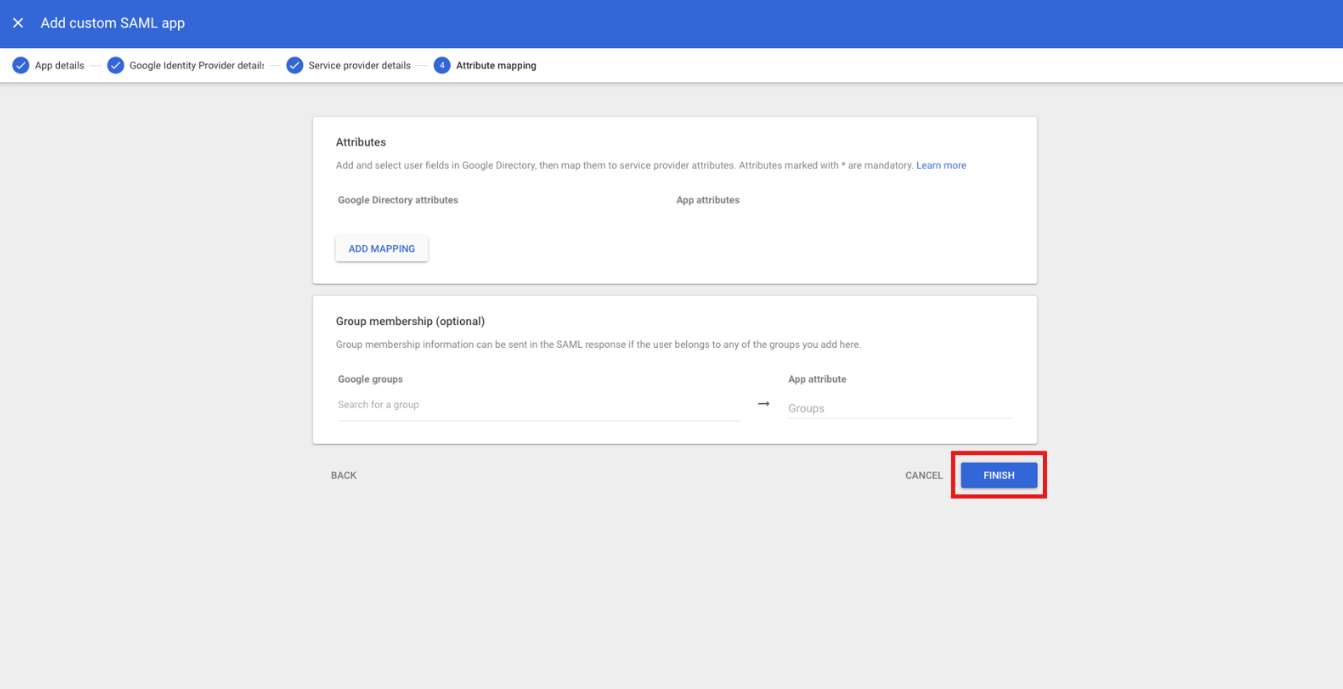
Step 6: Attribute Mapping Configuration
On this screen, you can skip the things by clicking "Finish" .
Step 7: Enable the Application for Users
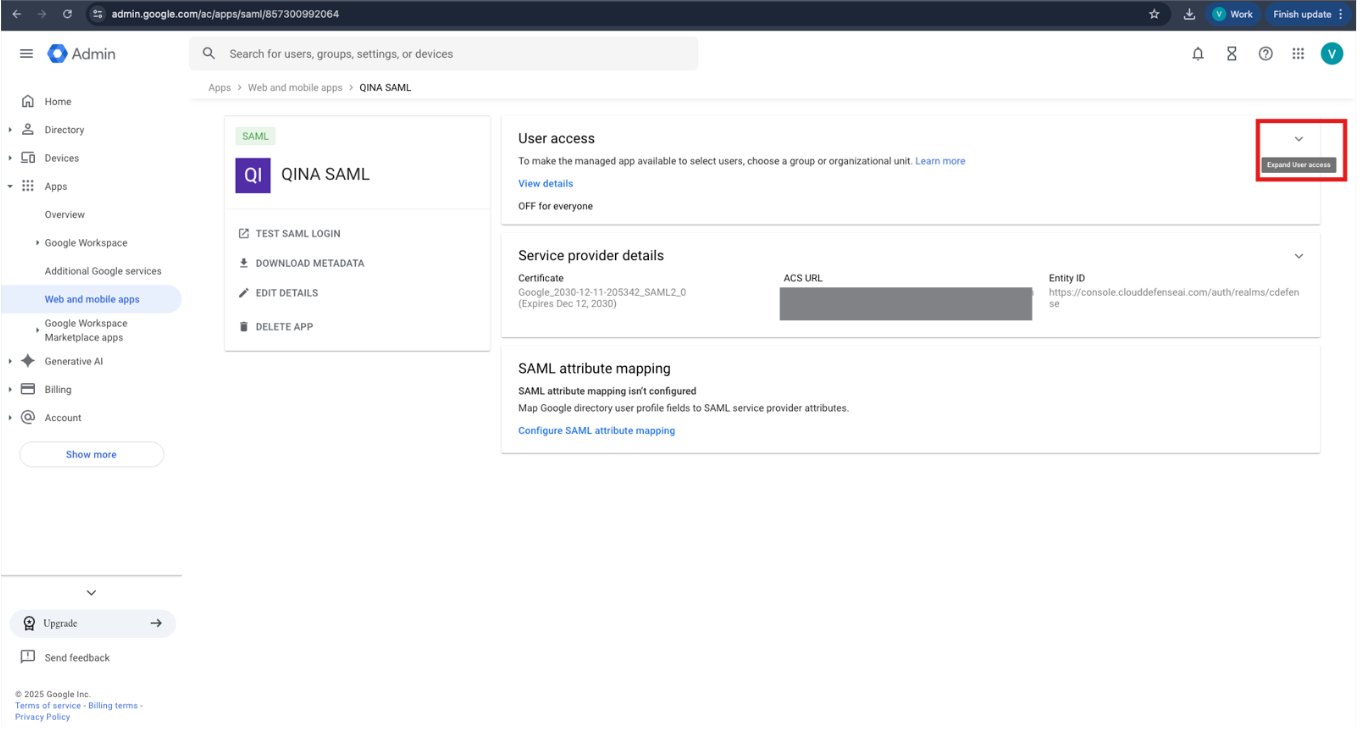
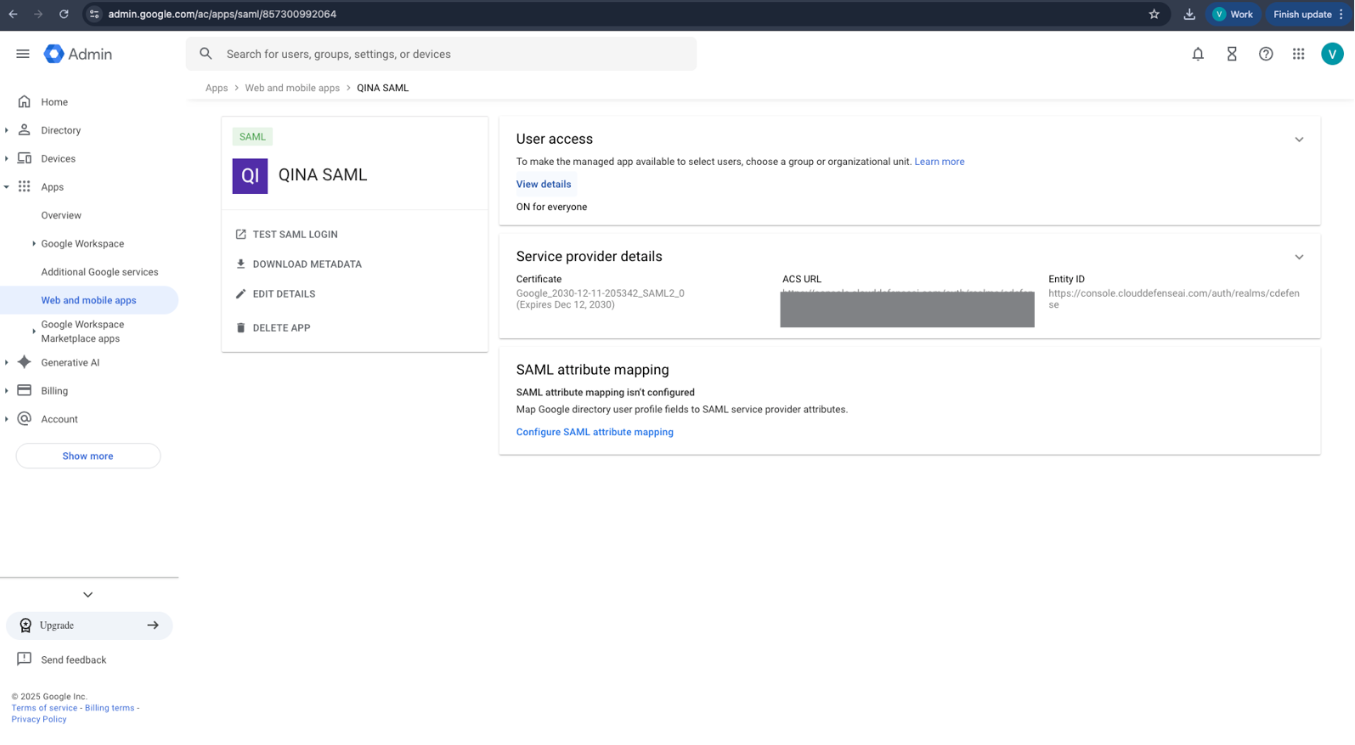
After completing the setup, you'll be taken to the app details page
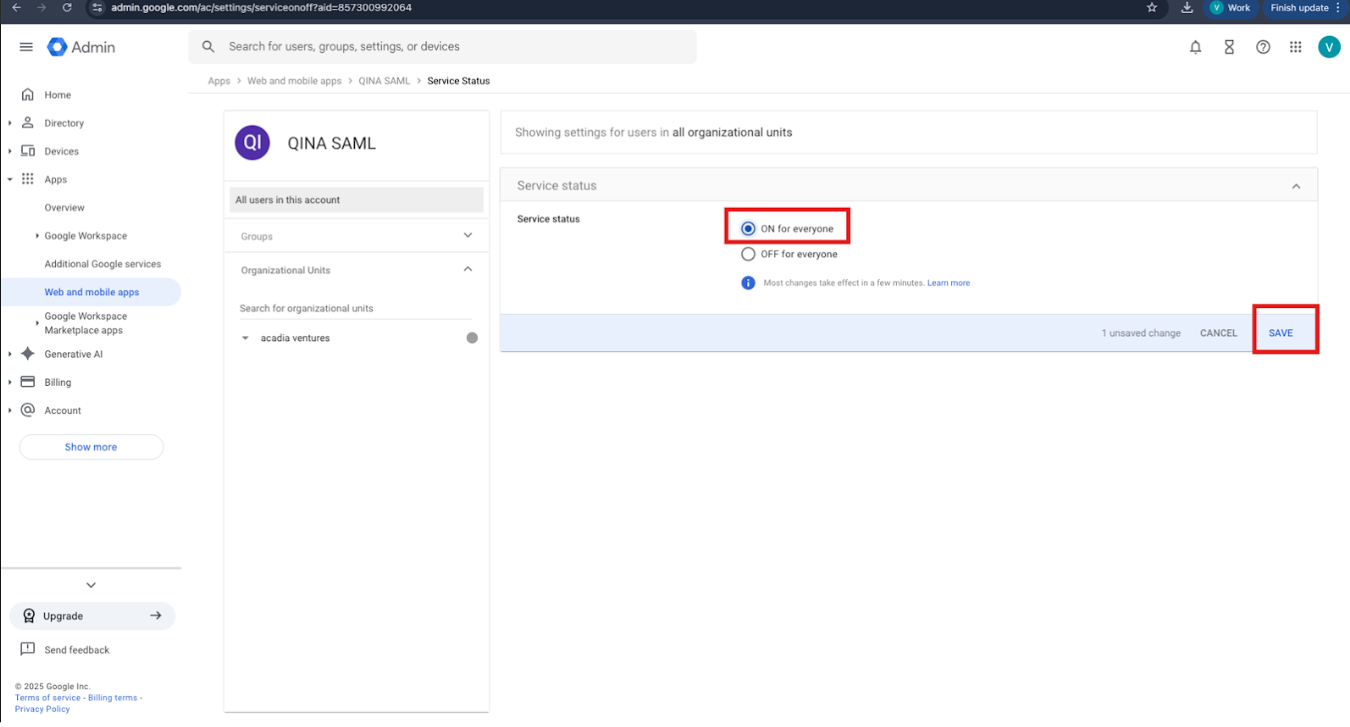
Locate the "User access" section
Click on the service status toggle or "OFF" button
Select one of the following options:
"ON for everyone" - enables the app for all users in your organization
"ON for some organizations" - select specific organizational units
"OFF" - keeps the app disabled
For immediate access, select "ON for everyone"
Click "Save" to apply the changes
Step 8: Verify and Test the Configuration
The app will now appear in your Web and mobile apps list
Verify that the status shows "ON" with a green indicator
Check that all configuration details are correct
Test the SSO login by accessing your application
Users should now be able to sign in using their Google credentials
Configuration is complete and ready for use
Was this article helpful?
That’s Great!
Thank you for your feedback
Sorry! We couldn't be helpful
Thank you for your feedback
Feedback sent
We appreciate your effort and will try to fix the article